

Solo Admin Panel Best Practices: A Field Guide for Smarter Management
Managing your Solo Admin Panel sounds simple, until the user list grows, projects multiply, and suddenly no one knows who has access to what.
Sound familiar? The good news: a few intentional habits can transform a cluttered, chaotic setup into a clean, well-governed system that practically runs itself. Here's what the most effective admins are doing and what every team should consider adopting.
Start with User Groups (Seriously, Use Them)
The single biggest efficiency unlock in the Admin Panel is the User Groups feature, and it's still underused at many organizations.
Instead of manually assigning project access to every individual, admins can create groups (by team, region, or role) and assign project permissions once at the group level. Add a new hire to the "Cold Lake Team" group, and they instantly inherit access to every project that team needs. No guesswork, no one-by-one clicking through a list of hundreds of projects.
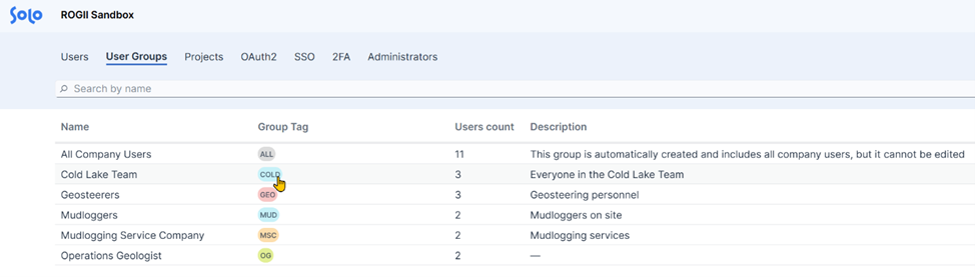
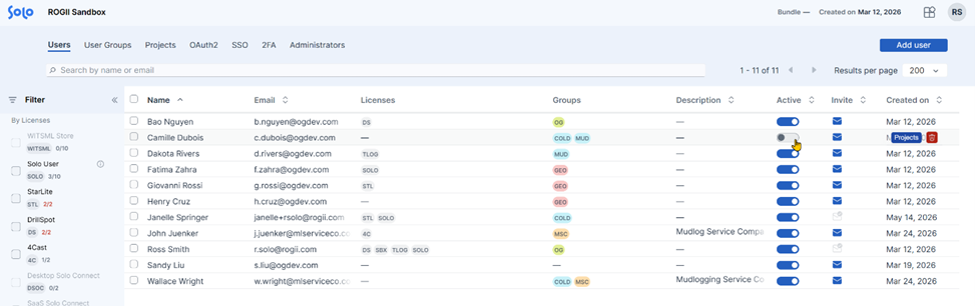
Groups can also be color-coded with shorthand labels, making it easy to scan the user list and see at a glance who belongs where. It's a small touch that pays dividends when managing a large organization.
One feature coming soon will extend this further: the ability to restrict licenses by group. Need to ensure the IT team never accidentally consumes a StarLite license? A dedicated group with license restrictions will make that automatic.
Assign Licenses the Smart Way
For organizations using assigned licenses (rather than floating), license management used to mean clicking through each sub-license individually. That's changed.
Now, clicking a top-level license bundle(like "Solo User") selects all associated licenses in a single click. If a specific user doesn't need one item in the bundle (say, the Python SDK),hover over the license name and use the pencil icon to deselect just that one.
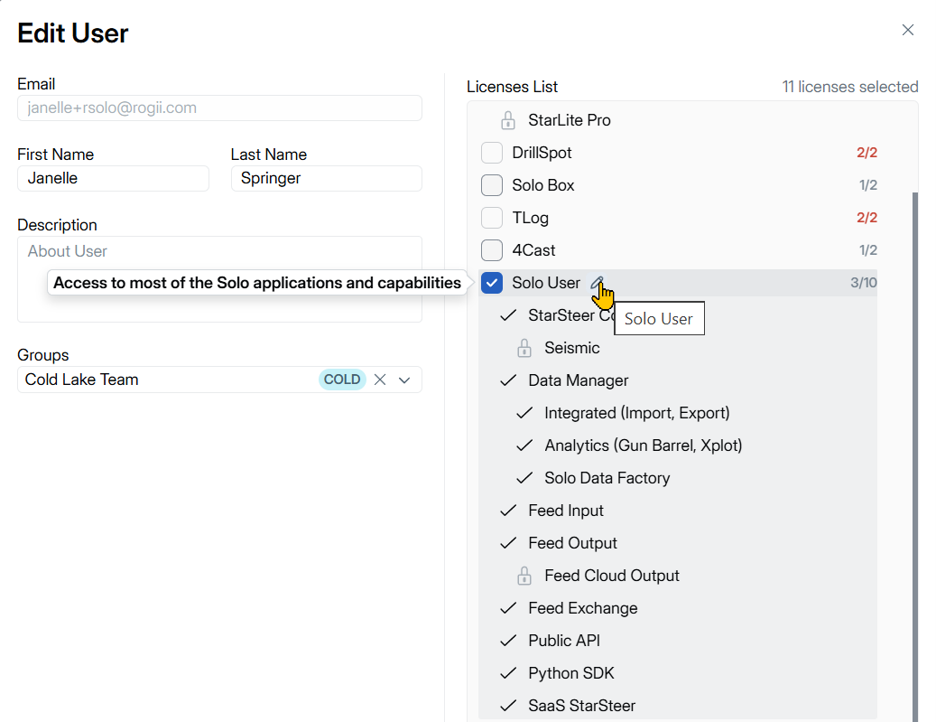
It's also worth knowing that StarSteer licenses can now be managed directly inside the Solo Admin Panel. Previously tracked via separate activation codes, teams can consolidate everything into one place, eliminating the spreadsheet juggling and activation code sharing that many admins know all too well. Please contact your Account Executive for guidance on this process.
Establish a Project Creation SOP
Database clutter is one of the most common pain points admins report. When anyone can create a project and name it whatever they want, the project list quickly becomes a maze. The fix isn't technical — it's procedural.
A project creation Standard Operating Procedure (SOP) should cover:
- Naming conventions (consistent, recognizable, team-based)
- When to create a Global project vs. a Virtual project
- Who has authority to create new projects
- How to handle projects when work in an area wraps up
Global projects are best kept large and all-encompassing — one per region or team, acting as the master database that continuously accumulates data. They don't need to be opened directly in StarSteer; they're the source of truth.
Virtual projects are the working layer: smaller, pulled from the global project, scoped to a manageable number of wells. When a virtual project starts slowing down or growing unwieldy, the right move is to delete it (the data stays safe in the global project) and spin up a fresh one. Think of it like clearing a workbench — the materials are still in the warehouse.
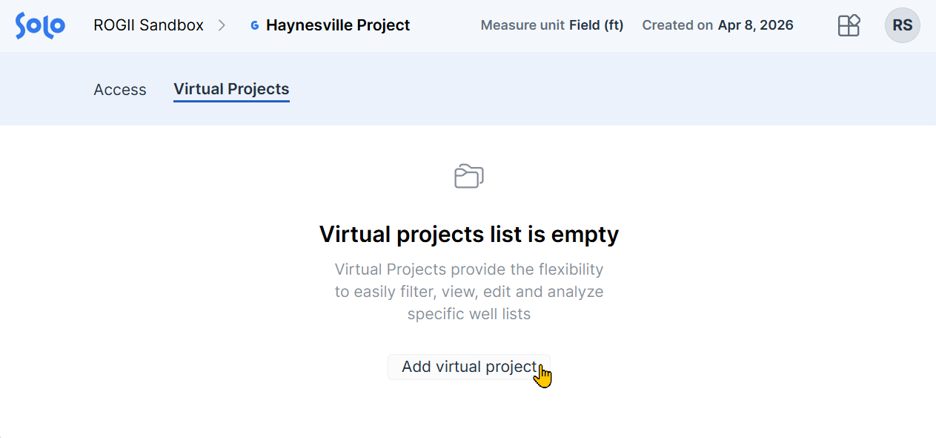
Personal projects created directly from StarSteer and saved to Solo Cloud will not appear in the organization-wide project list, they remain visible only to users who've been granted access. This keeps the shared list clean while still giving individuals a place to work. Keep in mind that once another user is granted access, it becomes a Global Project.
Right-Size Admin Access
There's no universal answer for how many admins an organization needs, but there are recognizable patterns on both ends of the spectrum.
Too few admins creates bottlenecks. Someone needs to be added urgently, and the one admin is unavailable. Too many admins without coordination leads to inconsistency: everyone doing things slightly differently, no shared naming conventions, projects accumulating without structure.
A middle path that works well for many teams: one admin per region or team, each responsible for their user group, operating from a shared SOP. It distributes the workload without sacrificing consistency.
One critical note: no one at ROGII can add users to a company's organization. Due to SOC 2 certification and strict data security standards, the Admin Panel is entirely under client control. Admins are the only path in, which makes the right-sizing question all the more important.
Keep Views in StarSteer Personal — or Share Them
A common reason teams resist working in shared Global projects: fear that a colleague will change a log color or scale and ruin a carefully configured view. This concern is now solved.
Enabling Custom Formats in the Geosteering or Correlation Panel view ensures that each user's colors, scales, and log configurations are their own. Changes made by colleagues won't affect them.

And when someone wants to adopt a colleague's view setup? Users can save their current layout as a named template, and apply any other user's view (as long as they have right-clicked their layout and clicked “Set Public”). Right-click in the Geosteering Window or Correlation Panel, save as layout, then switch back any time.
Pro tip: Applying another user’s Geosteering View will overwrite your own. Be sure to right click and save your geosteering layout before applying a colleague’s.
One more great feature in StarSteer 2026.1 is the Get Window functionality. Simply click the dropdown for any View in the View tab, and go to Get Window. You can then pull another User’s window directly into your project, no need to save or apply layouts.
Use the Activity Log as a Safety Net
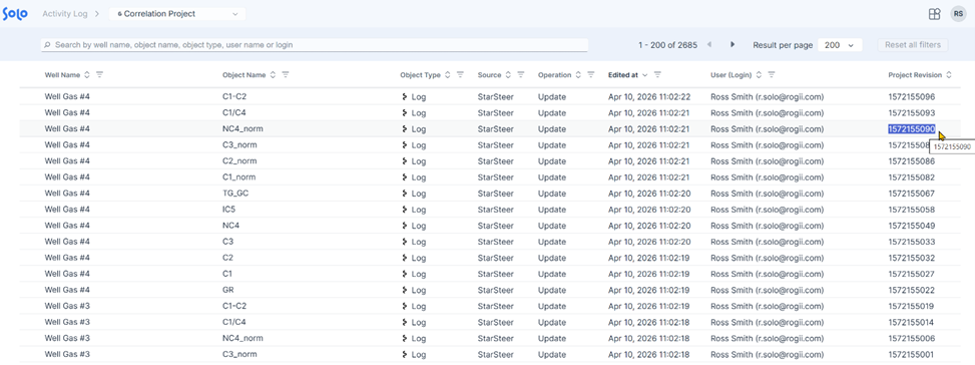
Mistakes happen. When they do, admins have a powerful tool available: the Activity Log, accessible from the main solo.loud interface.
The log tracks up to 100,000 edits per project — every change, every action, time stamped and attributed. If a batch of incorrect data was imported, or something was accidentally deleted, an admin can identify the exact revision point and restore the project to that state.
It's the best practice that's most often overlooked: when someone leaves the company, remove their access.
It sounds obvious, but many organizations discover (sometimes years later) that former employees still have full access to sensitive project data. A quarterly review of the user list against active personnel is a simple, low-effort habit that closes a real security gap.
For contractors or users who are temporarily off rotation, the inactive toggle is the right tool. It blocks access without deleting the account, preserving all their permissions and settings for when they return.
The Bottom Line
A well-run Solo Admin Panel doesn't happen by accident. It's built on a handful of deliberate practices: structured user groups, consistent project naming, clear SOP documentation, and regular access hygiene. None of these require advanced technical knowledge. They just require someone to set the standard and stick to it.
Start with one: pick the practice that would have the biggest impact on the team today, and build from there.
Need help with mastering these Best Practices? Contact us for support! https://www.rogii.com/support
Or, check out our webinar hosted by Janelle Springer, that goes over this topic in detail. Click on the link here: Best Practices in Solo Admin


