

Advanced Data Management & Project Hygiene in Data Manager
Maintaining a clean project database is critical for operations. This guide covers advanced workflows in Data Manager for identifying duplicates, validating data against regulatory sources, and utilizing production data in Gun Barrel plots.
1. Navigating the New Layout
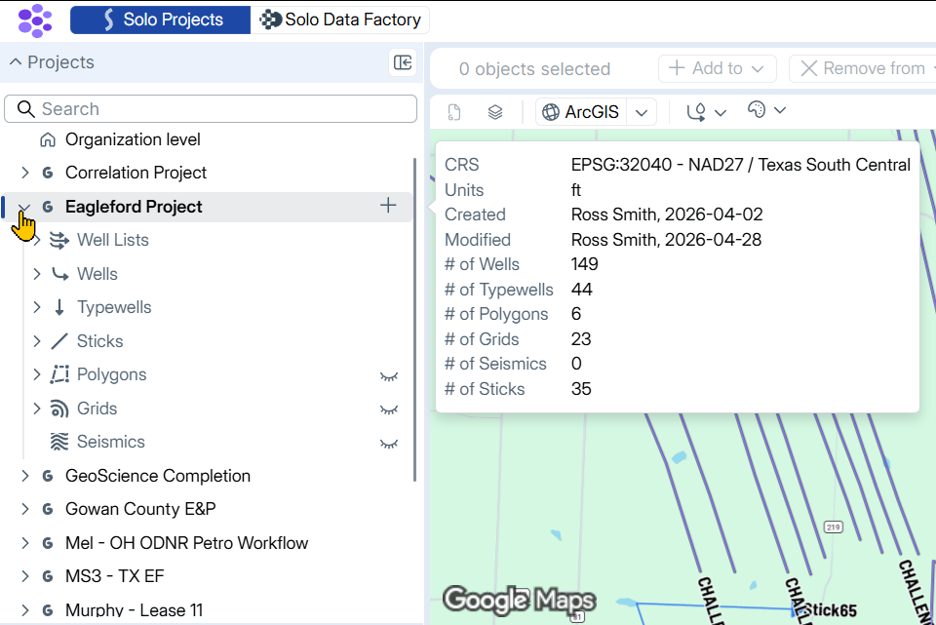
The Data Manager interface has been updated to improve object accessibility.
- Project Tree: Global projects are located in the left sidebar.
- Nested Objects: Well lists, polygons, and more are now nested directly under their respective Global Projects.
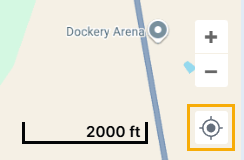
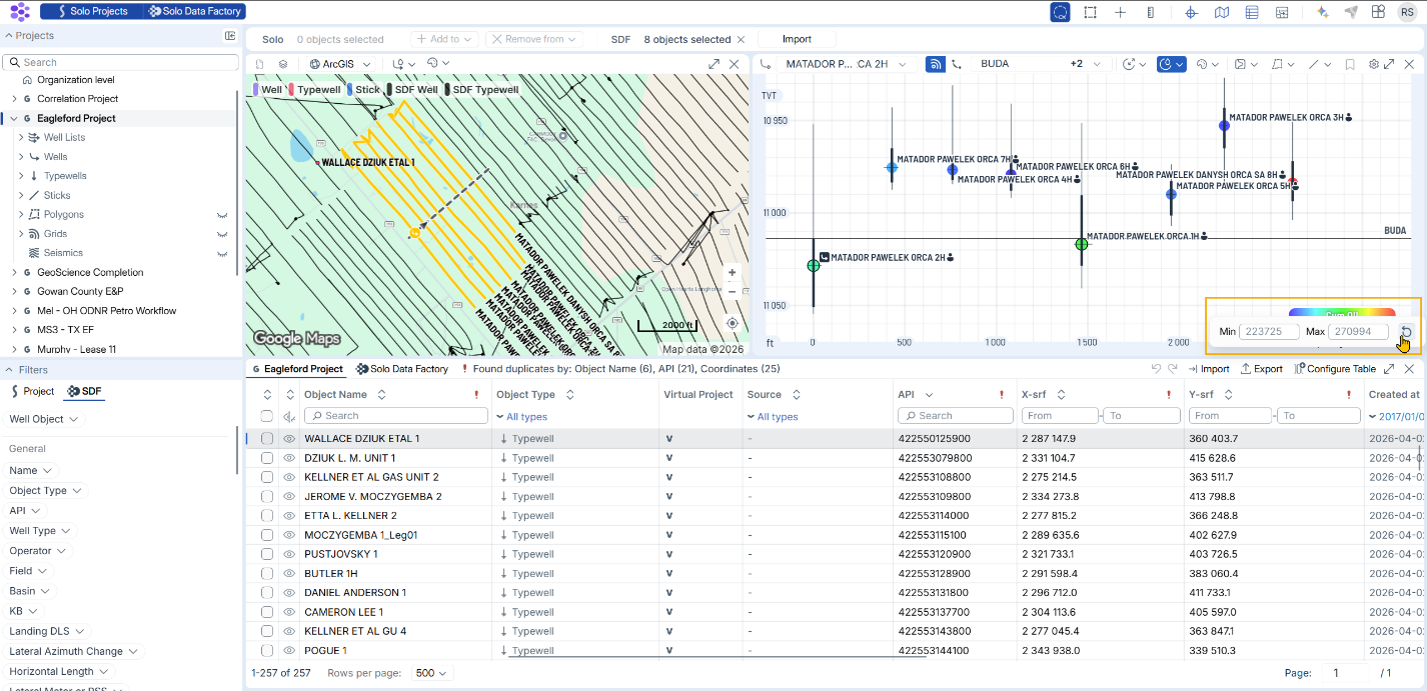
- Map Navigation: Use the Show All button (bottom right of the map) to quickly zoom to all visible or selected objects.
2. Identifying and Managing Duplicate Wells
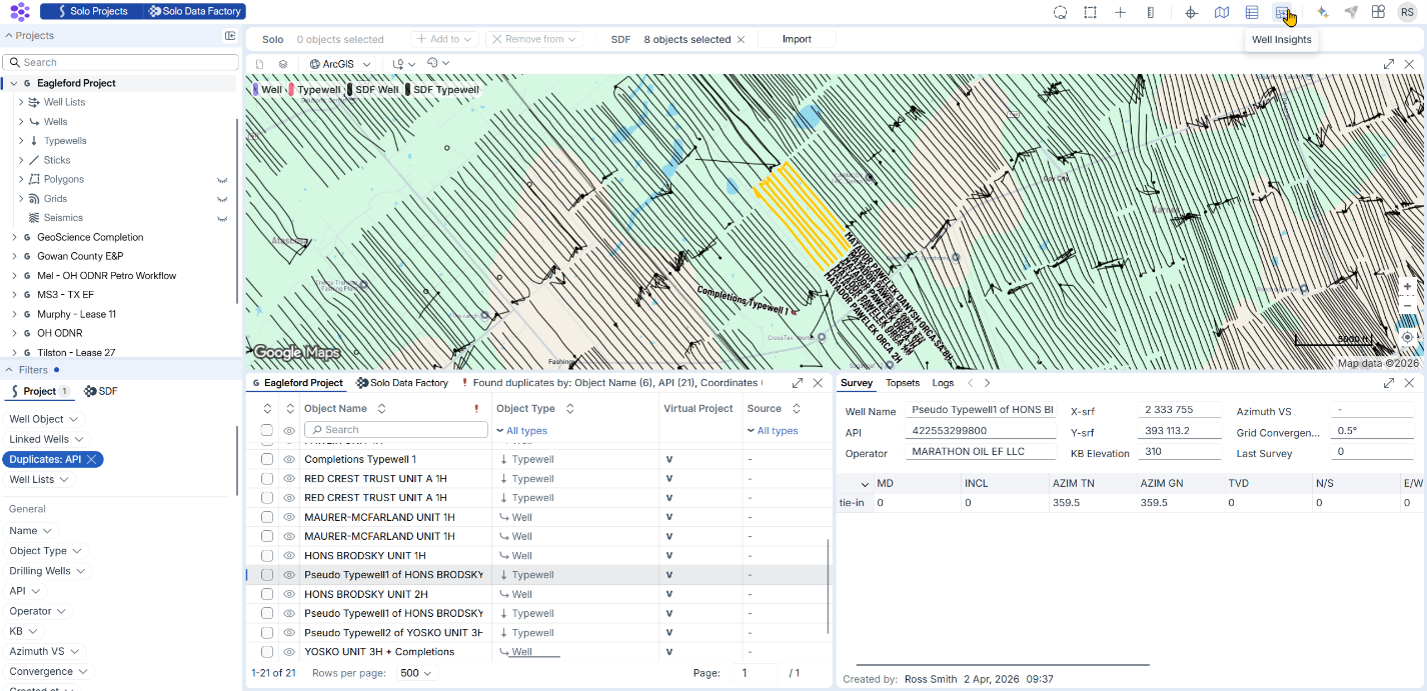
Duplicate wells (including "pseudo" type wells) can cause inconsistencies in project reporting.
How to identify duplicates:
- Filter by API Number or Coordinates in the table view.
- Toggle Solo Data Factory (SDF) to compare internal project data against regulatory "ground truth."
- Check Well Insights to see which duplicate contains the active geosteering interpretation, logs, or tops.
How to resolve:
- Manual Edit: Double-click any cell in the table to edit API numbers or names directly (requires Interpreter permissions or higher).
- Bulk Cleanup: Use the "Delete" keyword in a custom attribute column to flag wells for removal in StarSteer.
- Unlinking: Note that a Typewell cannot be deleted if it is still linked to other wells. Use the bulk unlink script in StarSteer if necessary.
3. Data Validation & Missing Logs
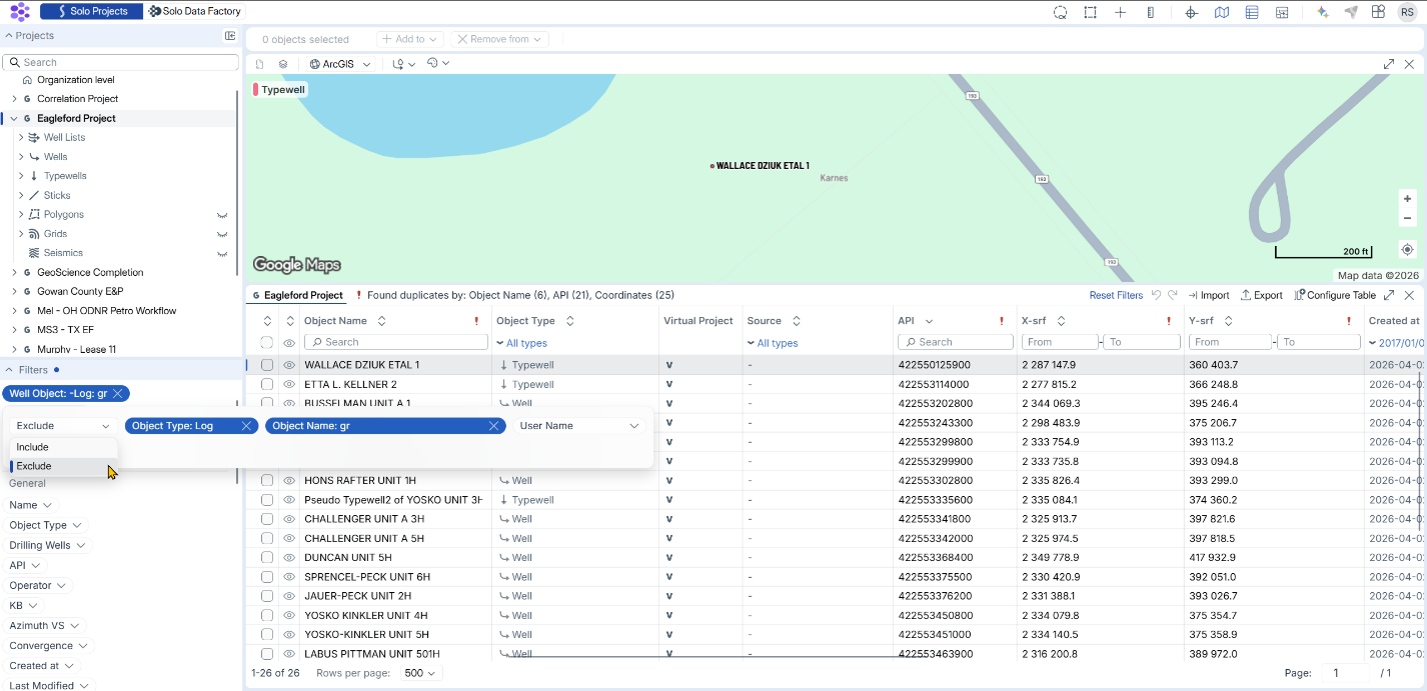
Use filters to ensure all required data has been successfully streamed from third-party providers.
- Well Object Filter: Apply a filter for specific log types (e.g., Resistivity or Gamma Ray).
- Gap Analysis: Use the "Exclude" filter to identify which wells are missing critical log data that needs to be re-imported or re-streamed.
4. Gun Barrel Plot Analytics
Gun Barrel plots support production-based visualization using Solo Data Factory regulatory data.
Workflow:
- Size by: Select Cumulative Gas or Cumulative Oil.
- Color by: Select a secondary production attribute.
- Normalization: Right-click the scale and select Normalize to compare production "per foot" across different lateral lengths.
- Sync View: Ensure the Map View and Gun Barrel plot use the same color palette (e.g., "Sunny Funny") for visual consistency.
5. Excel Integration (Bulk Updates)
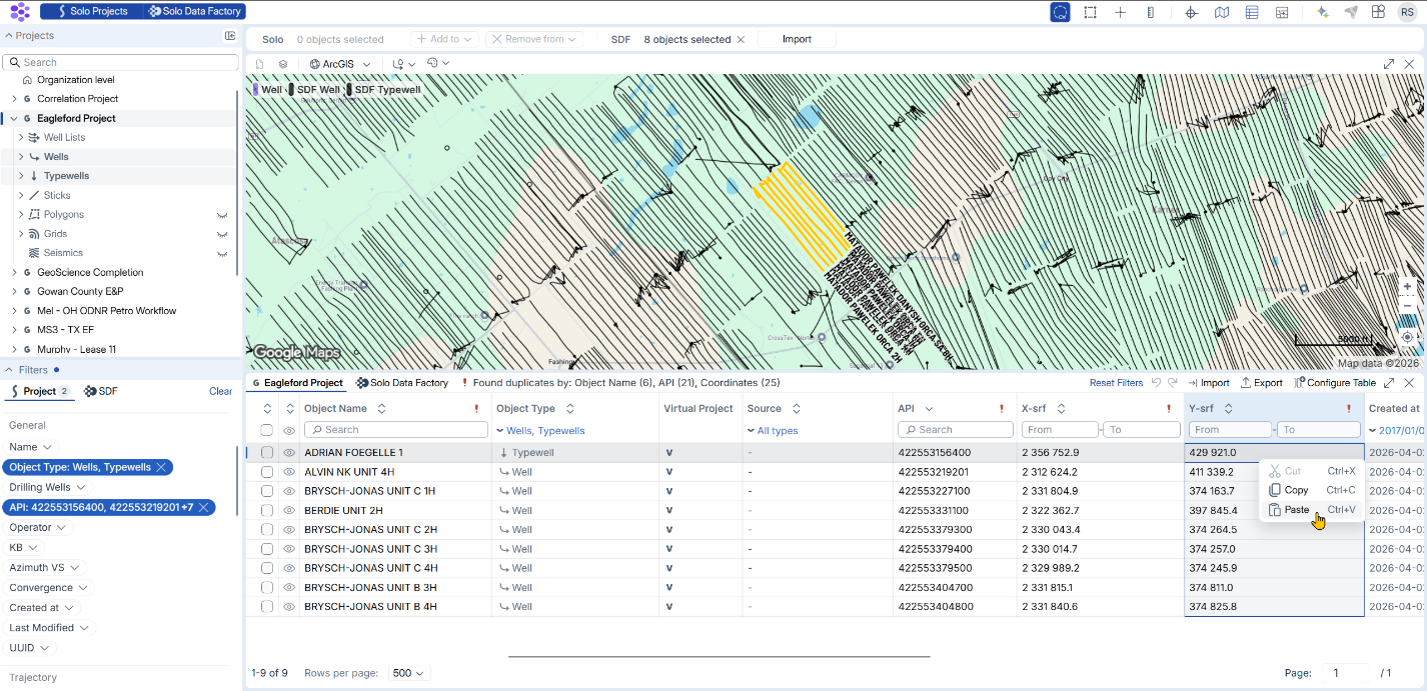
For large-scale header updates, Data Manager supports direct copy-paste functionality.
- Limit: Internal searches and well lists are optimized for batches of up to 500 wells.
- Process: Copy a column from Excel and paste it directly into the corresponding column in the Data Manager table. Ensure the row order matches before pasting.
Elevate Your Data Integrity Today
Whether you're performing a quick hygiene check for duplicate APIs, validating your logs against regulatory "ground truth," or uncovering production trends in a Gun Barrel plot, these tools are designed to give you total confidence in your data. Start implementing these cleanup strategies today to ensure your team is always working with the most accurate, streamlined information possible.
Want to learn more? Contact us at rogii.com/support for more tips and tricks on Data Manager!


